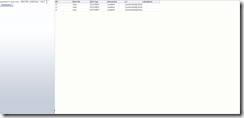
Here are some steps to create an application that uses UCM search API (SOAP based) and shows the results in the web page. In addition I will explain how to setup HTTP basic authentication to enable calling UCM web services.
Create an application
You start with creating an application


Give descriptive name for the default web project


Create JSF page


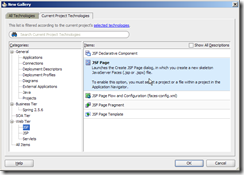
By default we start with the quick start layout:
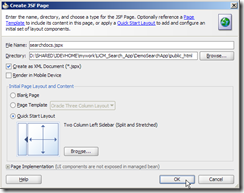

Create web service data control based on UCM search WSDL
In this part I’ve already downloaded the UCM WSDL descriptions using another UCM instance. The SOAP API is still the same but WSDL points to another hostname as the endpoint. We will modify this later.

Choose “All Technologies” tab in the left hand side + Web Service Data Control” in the right hand side:

Browsing for the search API WSDL file:


I only choose one operation to be used:


Just click next(s):


Please note that at this point the end point that was derived from WSDL is still pointing to a wrong installation, and I will correct this error later in this guide.
Changing the end point URL for web service (optional)
Navigate to the DataControls.dcx file
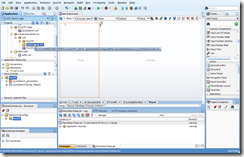
Look into the bottom left hand side Structure pane:

Press mouse right click button to open context menu. Choose “Edit Web Service Connection…”

Let’s change the hostname. Leave username and password fields intact since they are not used as http basic authentication.


Adding input parameter field for search text
Next I will build up a very simple search form for UCM documents:
Select “Input Text” from component palette and drag’n’drop into the left hand pane:


You could change the field names and labels to something more descriptive:

Add search results table
Next I will drag’n’drop the search results control to the right hand side:


I will only choose some of the columns by deleting the unwanted columns.

Leave this dialog to be as-is, press OK.

Add search command button
Next I will create a command button that will actually execute the query (calls the web service API eventually).
Select the QuickSearch operation from data control and drag’n’drop it into the left pane:
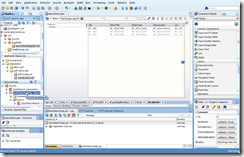


Bind the parameter to the input field
Many cases JDeveloper will automatically bind the input parameters from UI to the web service parameters, but here I’ll show you one way to do it when web full automation is not possible.
Navigate to the web service “Parameters” folder and choose the “queryText” parameter. Drag’n’drop it to the input field in JSF page.

Bind the input text field:

Let the defaults be there and press Ok:


Binding from input field to the parameter is now done.
Add HTTP basic authentication policy
To enable HTTP basic authentication you need to define web service security settings. I start choosing DataControls.dcx which reveals me data control structure, where I select the wanted data control.

Press context menu and choose “Define Web Service Security…”:

Press “+” to add new security policy:
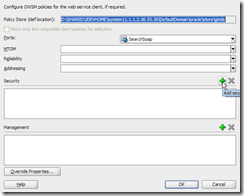
Choose “oracle/wss_http_token_client_policy”:

Press “Override Properties..:”

Press “New key…”

Enter username and password for the end point (actually these will be overriden in the later phase). Enter key name that will be used to find the username and password settings from at runtime.
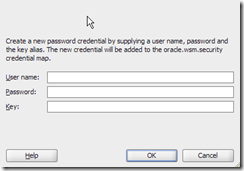

Csf-key is important to remember since this will be used to store the username and password for the endpoint in domain keystore.


Create deployment profiles for project and application and deploy
You need to first create WAR deployment profile for the project.
Then you create EAR deployment profile for the application and define the dependency to the WAR deployment profile.
You should deploy the application (not WAR).
Define credentials key under oracle.wsm.security
Login to the Fusion Middleware Enterprise manager console. The URL is something like http://localhost:7001/em

Press “Create Key”. Key attribute here is the csf-key you defined earlier. In my example I used csf-key “demo-ucm-search”. These are the actual username and password that are used when initiating the connection to UCM.


Test and run
Deploy the application to the domain and you should be fine with the application based on UCM SOAP APIs.

UCM search API uses special search notation, so I wanted to search for UCM documents that had “visa” in the document title. I enter the query criteria dDocTitle <substring> `visa`.